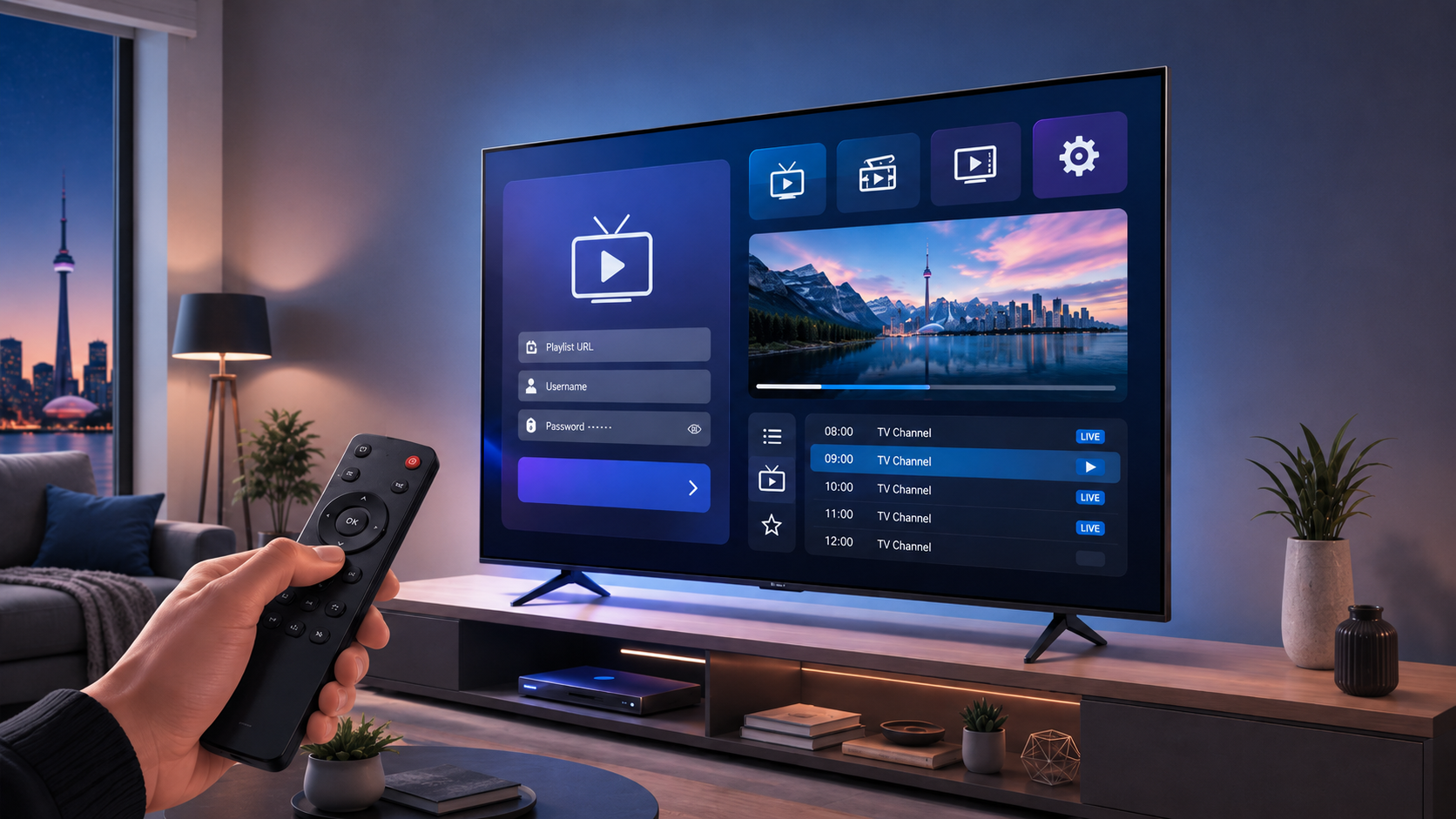
How to Install IPTV on Samsung Smart TV in Canada: 2026 Guide
Learning how to install IPTV on a Samsung Smart TV in Canada is relatively simple when you use an application available through Samsung’s built-in app store. Unlike Amazon Firestick or Android TV devices, Samsung televisions use the Tizen operating system. This means you cannot normally install an Android APK file directly on the television. Instead, you need a compatible IPTV player designed for Samsung Smart TV. Samsung confirms that its Smart TVs use Tizen and access supported applications through Smart Hub.
Once the correct player is installed, you can add the login information supplied by your IPTV provider. Depending on the application, this may include Xtream Codes credentials, an M3U playlist, a portal address, a device ID or a MAC address.
This guide explains how to prepare your television, find a compatible player, add your subscription and troubleshoot common installation problems.
What Do You Need Before Installing IPTV on Samsung Smart Tv?
Before starting the installation, prepare the following:
- A compatible Samsung Smart TV
- A stable internet connection
- A Samsung account
- An IPTV player available in the Samsung Apps store
- Active login details from an IPTV provider
- Your Samsung remote control
- A phone or computer if playlist activation is completed through a website
The IPTV application and the subscription are two separate elements. The application acts as a media player; it does not automatically provide television channels, movies or series.
To access content, you need an active IPTV Subscription that provides compatible login details.
Check Whether Your Samsung TV Is Compatible
Most current Samsung Smart TVs use the Tizen operating system, but the available applications depend on the television model, software version and Canadian app-store catalogue. Samsung notes that an application may not appear when it is incompatible with a particular TV model, which is more common on older televisions.
To find the model information on a recent Samsung television:
- Press the Home button on the remote.
- Open Settings.
- Select All Settings.
- Open Support.
- Select About This TV.
- Note the model code and software version.
On an older Samsung TV, the option may be found under Settings → Support → Contact Samsung or About This TV.
If your television is too old to support modern IPTV applications, you can still connect an external streaming device through HDMI. Samsung specifically recommends using a compatible media player, game console or TV box when an application is unavailable for a particular television model.
Step 1: Connect the Samsung Smart TV to the Internet
Your Samsung Smart TV must be connected to the internet before you can open Smart Hub, install an application or stream live television.
Connect through Wi-Fi
On most Samsung televisions released in 2022 or later:
- Press Home on the remote.
- Open Settings.
- Select All Settings.
- Open Connection.
- Select Network.
- Choose Open Network Settings.
- Select Wireless.
- Choose your Wi-Fi network.
- Enter the Wi-Fi password.
- Select OK after the connection is established.
On many models from 2021 or earlier, the path is:
Home → Settings → General → Network → Open Network Settings → Wireless
Samsung notes that certain older TVs support only the 2.4 GHz Wi-Fi band. If an older television cannot detect your 5 GHz network, ensure that the router is also broadcasting a 2.4 GHz connection.
Connect through Ethernet
For the most consistent streaming performance, connect an Ethernet cable between the LAN port on your television and an available port on your router.
After connecting the cable, navigate to:
Settings → All Settings → Connection → Network → Open Network Settings → Wired
The television should detect the connection automatically. Samsung describes Ethernet as the preferred option for optimal stability and speed.
A wired connection can be particularly useful when watching live sports or high-resolution streams, where brief Wi-Fi interruptions may be more noticeable.
Step 2: Sign In to Your Samsung Account
A Samsung account is now required to access Smart Hub and download applications on supported Samsung TVs sold in Canada.
To sign in:
- Press Home.
- Open Settings.
- Select All Settings.
- Choose General & Privacy.
- Open System Manager.
- Select Samsung Account.
- Scan the QR code with your phone or enter your information with the remote.
- Accept the required terms.
Creating the account on a phone or computer is often easier than entering a long email address and password with the television remote.
Step 3: Search for an IPTV Player
After connecting the television and signing in, you can search for a compatible IPTV application.
- Press the Home button.
- Open Apps or select Search from the Smart Hub menu.
- Enter the name of your preferred IPTV player.
- Select the correct application from the results.
- Review the application name and developer information.
- Select Install.
- Wait for the installation to finish.
- Choose Add to Home for easier access.
- Select Open.
Samsung’s current Canadian instructions follow the same general process: open Search, find the application, select Install and then choose Open or Add to Home. Menu names may differ slightly according to the television model and software version.
Applications commonly designed for Samsung TVs can include playlist-based players, Xtream Codes players and applications activated through a device ID. Availability can change by country, model and app-store policy, so search directly on your television rather than assuming a particular player will be listed.
Can You Install IPTV Smarters on a Samsung Smart TV?
A Smarters-style player may be available on some Samsung models or in some regional catalogues, but availability is not guaranteed for every television.
Search for terms such as:
- IPTV Smarters
- Smarters Player
- Smarters Player Lite
- IPTV player
- M3U player
Select only an application that clearly identifies itself as a media player. Avoid applications that make unrealistic claims about automatically including thousands of premium channels.
If your preferred Smarters application does not appear, use another compatible player from the Samsung store or connect an external device, such as an Amazon Firestick or Android TV box.
Step 4: Choose the Correct Login Method
After installing the player, open it and determine which connection methods it supports.
The most common methods are:
Xtream Codes
With Xtream Codes, the IPTV provider normally supplies:
- A username
- A password
- A server or portal URL
To configure the account:
- Open the IPTV application.
- Select Add User, Add Playlist or a similar option.
- Choose Xtream Codes API.
- Enter a name for the playlist.
- Type the username.
- Type the password.
- Enter the server address exactly as provided.
- Select Add User, Login or Connect.
- Wait for the channels and programme guide to load.
Be careful when entering the server URL. Missing characters, spaces or an incorrect http or https prefix can prevent the account from loading.
M3U playlist
An M3U URL is a longer web address containing the playlist information.
To add it:
- Select Add Playlist.
- Choose M3U URL or Load Your Playlist.
- Enter a name for the playlist.
- Type or paste the full M3U address.
- Add the EPG URL separately if the application requests it.
- Save the playlist.
- Wait for synchronization.
Typing a long M3U link with the television remote can be inconvenient. Some applications allow you to upload the playlist through a website instead.
Device ID or MAC-address activation
Certain Samsung IPTV players display a device identifier and activation key when first opened.
The process generally works like this:
- Open the IPTV player.
- Record the displayed device ID, MAC address and device key.
- Open the player’s official activation website on a phone or computer.
- Enter the device information.
- Add the M3U playlist or account credentials.
- Save the changes.
- Restart the application on the television.
- Refresh the playlist.
Do not share your real television MAC address publicly. Only enter activation details on the verified website belonging to the application.
Step 5: Organize the Channels and EPG
Once the account is connected, the application may begin downloading:
- Live television categories
- Movies and series
- Channel logos
- Programme schedules
- Catch-up information
- Favourite lists
The first synchronization can take several minutes, especially when the playlist contains a large number of items.
Open the settings and check whether you can:
- Hide unused categories
- Add favourite channels
- Change the video player
- Select the EPG time zone
- Enable parental controls
- Update the playlist automatically
- Choose the interface language
For Canadian viewers, verify that the EPG time zone matches your province. An incorrect time-zone setting can cause programme listings to appear one or several hours early or late.
How to Choose a Suitable IPTV Player for Samsung TV
The best application is not necessarily the one with the most features. Choose a player based on your television and viewing habits.
Look for:
Simple navigation
The application should be easy to control with a standard Samsung remote. Menus designed mainly for phones may be difficult to navigate on a television.
Login compatibility
Confirm whether the player accepts Xtream Codes, M3U playlists or the format supplied by your provider.
EPG support
A functional electronic programme guide makes it easier to browse live television and see what is currently playing.
Favourites and categories
The ability to hide unwanted groups and save favourite channels is important when working with a large playlist.
Parental controls
Families may want a PIN that restricts access to selected categories.
Clear licensing terms
Some players are free, while others offer a trial followed by a one-time or recurring activation fee. The player fee is usually separate from the IPTV service.
Before committing to a longer package, compare the best iptv plans in canada and confirm that the chosen iptv provider supports your Samsung application and login method.
What to Do When the IPTV App Does Not Appear
An IPTV application may be missing because:
- It is unavailable in the Canadian Samsung store.
- It does not support your TV model.
- The application has been removed or renamed.
- Your television software is outdated.
- Smart Hub is using a different regional catalogue.
- The model no longer supports new applications.
Samsung advises that incompatible applications may not appear in search results, particularly on older TVs. In that situation, an external streaming device is usually more practical than attempting unofficial modifications.
Do not try to install a Firestick APK file directly on a Samsung TV. Android APK packages are not standard Samsung Tizen applications.
How to Fix IPTV Buffering on Samsung Smart TV
Buffering can come from the IPTV service, home network, application or television.
Start with these steps:
- Restart the television.
- Restart the modem and router.
- Test another streaming application.
- Check the TV’s network status.
- Use Ethernet if possible.
- Move the router closer to the television.
- Stop large downloads on other devices.
- Refresh the IPTV playlist.
- Test another channel.
- Update the television software.
Samsung recommends checking the connection on another device, restarting the router and examining the television’s network status to determine whether the problem is between the TV, router or internet service.
If only one channel is affected, the issue is likely connected to that individual stream. If every application buffers, investigate the television or network connection.
How to Update a Samsung Smart TV
Software updates may correct bugs and improve application performance.
Navigate to:
Settings → All Settings → Support → Software Update → Update Now
The exact path can differ by model. Samsung recommends keeping television software updated and allows updates through the internet or a USB drive.
Do not turn off the television while an update is being installed.
Reset the Network or Smart Hub
When the television connects to other applications but the IPTV player still fails, restart the TV by holding the remote’s power button for approximately five seconds.
For persistent network problems, use:
Settings → All Settings → Connection → Network → Reset Network
You will then need to reconnect the television to Wi-Fi.
Resetting Smart Hub should be a later step because it removes downloaded applications, linked accounts and Smart Hub settings. On supported models, the option is located under:
Settings → All Settings → Support → Device Care → Self Diagnosis → Reset Smart Hub
Samsung recommends checking for a software update and trying a soft reset before completing a full Smart Hub or factory reset.
Is IPTV Legal in Canada?
IPTV is a method of transmitting television through the internet and is not automatically illegal. Legality depends on whether the service has authorization to distribute the channels, films and other programming it offers.
Canada’s Copyright Act gives rights holders exclusive rights over activities including reproduction and communication of protected works. Using or distributing protected content without authorization can constitute copyright infringement.
Choose a transparent service, review its terms and avoid applications or subscriptions that claim to provide unauthorized premium content automatically.
Frequently Asked Questions
Does a Samsung IPTV application include channels?
Usually not. The application is a media player. You must add a compatible subscription, M3U playlist or account.
Can I use Downloader on Samsung Smart TV?
No. Downloader is generally used on Fire TV and compatible Android-based devices. Samsung TVs use the Tizen app ecosystem and normally install applications through Smart Hub.
Why are my IPTV login details not working?
Check the username, password and server URL. Confirm that the subscription is active and that the application supports the supplied connection format.
Can I install IPTV on an older Samsung TV?
It depends on the model and available applications. When no compatible player appears in Smart Hub, connect an external streaming device through HDMI.
Is Ethernet better than Wi-Fi for IPTV?
Ethernet generally provides a more stable connection. A strong Wi-Fi signal can still work well, but wired connectivity reduces interference and signal fluctuations.
Final Installation Checklist
Before watching, verify that:
- The television is connected to the internet.
- You are signed into a Samsung account.
- The IPTV player came from the Samsung store.
- Your login details were entered correctly.
- The EPG time zone is correct.
- The application has been added to the Home screen.
- The television software is updated.
- The service is authorized to distribute its content.
Following these steps makes it possible to install IPTV on a Samsung Smart TV in Canada without using complicated sideloading methods. A compatible player, reliable connection and correctly configured account are the main elements required for smooth live television streaming.