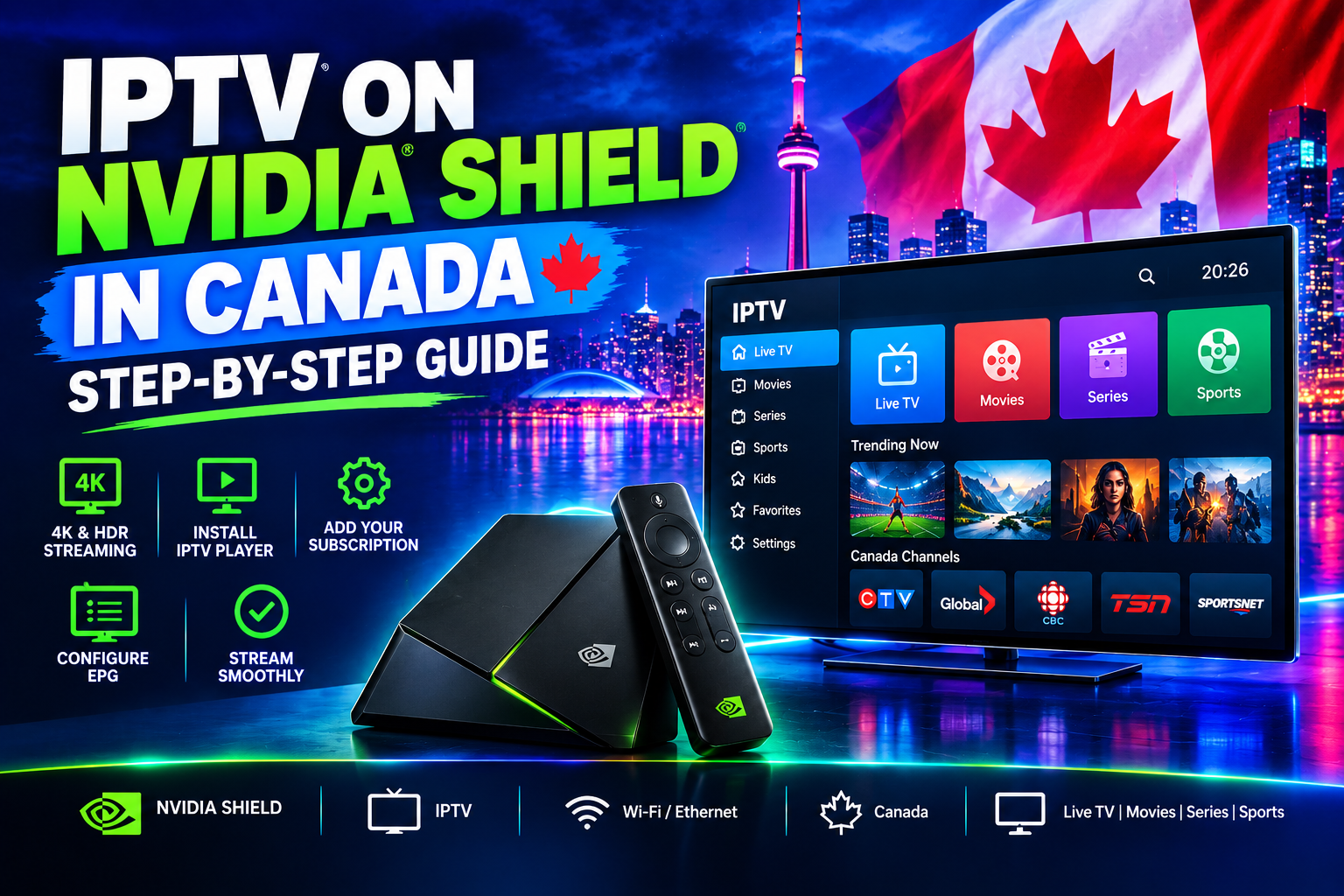
How to Use IPTV with NVIDIA Shield in Canada: 2026 guide
If you’re looking for a simple way to watch IPTV on your television, the NVIDIA Shield TV is one of the best streaming devices available. With its powerful hardware, Android TV interface, 4K support, and access to a wide range of streaming applications, the Shield makes it easy to set up and manage IPTV.
Whether you’re new to IPTV or switching from another streaming device, this guide explains how to use IPTV with NVIDIA Shield in Canada step by step. You’ll learn how to connect your Shield, install an IPTV player, add your IPTV subscription, configure the electronic program guide (EPG), organize channels, and improve streaming performance.
By the end of this guide, you’ll have a complete NVIDIA Shield IPTV setup ready for everyday streaming.
Why Use NVIDIA Shield for IPTV?
The NVIDIA Shield TV has become a popular choice for IPTV because it combines powerful hardware with a flexible Android TV platform. Unlike basic streaming devices, the Shield is designed to handle demanding applications and high-resolution video without feeling sluggish.
Some of the main advantages of using NVIDIA Shield for IPTV include:
- Powerful processor for smooth streaming
- Support for 4K Ultra HD
- HDR support on compatible TVs and content
- Fast application performance
- Android TV operating system
- Ethernet and Wi-Fi connectivity
- Access to the Google Play Store
- Support for multiple IPTV player applications
- Easy remote-control navigation
- Excellent upscaling on supported models
For viewers looking for a reliable IPTV player for NVIDIA Shield, the device offers plenty of flexibility and performance.
What You Need for IPTV on NVIDIA Shield
Before starting your NVIDIA Shield IPTV setup, make sure you have everything you need.
NVIDIA Shield TV
You can use either the NVIDIA Shield TV or Shield TV Pro. The exact hardware features differ slightly between models, but both can be used for IPTV streaming.
Television
Your TV needs an available HDMI port so you can connect the NVIDIA Shield.
Internet Connection
A stable internet connection is essential for IPTV. If possible, use Ethernet for the most reliable connection.
IPTV Subscription
You’ll need an IPTV subscription that provides the channels and content you want to watch. Your provider should give you the information required to connect your account to an IPTV player.
IPTV Player
An IPTV player is the application you use to access and organize your IPTV channels. Depending on availability, Android TV-compatible applications such as TiviMate, IPTV Smarters pro, and other IPTV players can be installed on NVIDIA Shield.
Step 1: Connect Your NVIDIA Shield to Your TV
The first step is connecting your NVIDIA Shield to your television.
Connect one end of an HDMI cable to the NVIDIA Shield and the other end to an available HDMI port on your TV.
Next, connect the Shield’s power adapter and turn on your television. Select the HDMI input connected to the Shield and wait for the NVIDIA Shield welcome screen to appear.
Follow the on-screen instructions to complete the initial setup.
You’ll typically need to select your language, connect to the internet, and configure your Google account.
Once you reach the NVIDIA Shield home screen, you’re ready for the next step.
Step 2: Connect NVIDIA Shield to the Internet
Your internet connection plays an important role in IPTV streaming performance.
Wi-Fi Connection
Wi-Fi is the easiest option if your router isn’t located close to your TV.
If your router supports 5 GHz Wi-Fi, connecting your NVIDIA Shield to the 5 GHz network can provide better performance than using a congested 2.4 GHz network.
Try to position your Shield where it can receive a strong wireless signal.
Ethernet Connection
Ethernet is generally the preferred option for IPTV streaming.
Connect an Ethernet cable from your router directly to the NVIDIA Shield. A wired connection can provide more consistent performance and reduce problems caused by wireless interference.
If your IPTV streams frequently buffer over Wi-Fi, switching to Ethernet is one of the first improvements you should try.
Step 3: Install an IPTV Player
The next step is installing an IPTV player.
Your IPTV subscription and IPTV player are normally two separate things. The subscription provides access to your channels and content, while the IPTV player gives you an interface for browsing and watching them.
How to Install an IPTV Player
To install an IPTV player directly on NVIDIA Shield:
- Open the Google Play Store.
- Select the search option.
- Search for your preferred IPTV player.
- Select the application.
- Click Install.
- Wait for the installation to finish.
- Select Open.
The exact installation process and features can vary between IPTV applications.
For the best experience, choose an IPTV player that is designed for Android TV and supports remote-control navigation.
Step 4: Get Your IPTV Login Details
After installing your IPTV player, you’ll need to connect it to your IPTV service.
Your provider should supply the information required to add your account.
The most common connection methods include an M3U playlist or Xtream Codes.
M3U Playlist
An M3U playlist is a URL containing information about your available IPTV channels.
Your IPTV provider may give you an M3U URL that you can enter directly into your IPTV player.
Xtream Codes
Some IPTV services provide an Xtream Codes login consisting of:
- Server URL
- Username
- Password
Your IPTV application uses these details to connect to your account and retrieve your available channels.
Use the connection method supplied by your IPTV provider rather than trying to guess the required information.
Step 5: Add IPTV to NVIDIA Shield
Once you have your login details, open your IPTV application.
Look for an option such as Add Playlist, Add User, Login, or Add IPTV Service.
Select the appropriate connection method.
If you’re using an M3U playlist, enter the playlist URL provided by your IPTV service.
If you’re using Xtream Codes, enter the server address, username, and password.
After entering the information, select the button to connect or add the account.
The IPTV application should then begin loading your available channels, categories, and other content.
Larger playlists can take a little longer to load, so give the application some time if you have a large number of channels.
Step 6: Adjust NVIDIA Shield Display Settings
If you’re using a 4K television, make sure your NVIDIA Shield is configured correctly for your display.
Open the Shield’s display settings and select the appropriate resolution for your TV.
If your television supports HDR, you can also configure the relevant display settings.
Keep in mind that having a 4K television doesn’t automatically make every IPTV stream 4K. The quality depends on the source and the resolution of the individual stream.
For the best picture quality, choose the highest-quality stream that your internet connection can handle consistently.
Common NVIDIA Shield IPTV Problems
IPTV App Keeps Freezing
If the IPTV application freezes, close it and open it again. If the problem continues, restart the NVIDIA Shield.
You should also check whether an update is available for the application.
IPTV Channels Won’t Load
Check that your IPTV account information has been entered correctly.
If you’re using an M3U playlist, verify the playlist URL. If you’re using Xtream Codes, check the server URL, username, and password.
EPG Isn’t Showing
Refresh the EPG and check that the correct EPG source has been entered.
If the guide still doesn’t appear, restart the IPTV application and refresh the playlist.
IPTV Keeps Buffering
Start by testing your internet connection.
Then try switching from Wi-Fi to Ethernet, restarting your router, restarting the Shield, and testing a different channel.
If only specific streams buffer, try another version of the same channel if one is available.
Remote Navigation Is Slow
Restart your Shield and check that you have sufficient storage space.
You can also remove applications you no longer use to keep your device organized.
Best NVIDIA Shield IPTV Setup for Canada
For the best overall experience, a simple setup is usually all you need:
NVIDIA Shield → Ethernet → Router → IPTV Service → IPTV Player
Use Ethernet whenever possible, keep your Shield software updated, choose an IPTV player designed for Android TV, and organize your favourite channels after adding your subscription.
If you have a 4K television and a suitable internet connection, you can also take advantage of compatible high-resolution streams.
Frequently Asked Questions About IPTV on NVIDIA Shield
Can I use IPTV on NVIDIA Shield?
Yes. NVIDIA Shield supports Android TV applications, including compatible IPTV players. You can install an IPTV application and connect it to your IPTV service using the login information provided by your provider.
What is the best IPTV player for NVIDIA Shield?
The best IPTV player depends on the features you prefer. Look for an application with good Android TV support, an easy-to-use interface, EPG support, favourites, playlist management, and smooth playback.
Does NVIDIA Shield support 4K IPTV?
Yes. NVIDIA Shield supports 4K output, and compatible IPTV streams can be displayed in 4K when your TV, internet connection, and IPTV source support the required resolution.
Is Ethernet better than Wi-Fi for IPTV?
Ethernet can provide a more stable connection and is generally recommended when available. However, a strong Wi-Fi connection can also provide excellent IPTV performance.
Why does IPTV buffer on NVIDIA Shield?
Buffering can be caused by several factors, including Wi-Fi interference, network congestion, insufficient bandwidth, high-resolution streams, or problems with an individual stream. Testing Ethernet and different channels can help identify the cause.
Final Thoughts
Setting up IPTV on NVIDIA Shield in Canada is straightforward once you have the right equipment and IPTV player.
The basic process is simple: connect your NVIDIA Shield to your TV and internet, update the device, install an IPTV player, add your IPTV account, configure the EPG, and organize your favourite channels.
For the smoothest experience, use Ethernet whenever possible and make sure your internet connection can comfortably handle the quality of the streams you’re watching.
Once everything is configured, the NVIDIA Shield provides a fast and convenient way to browse IPTV channels, use an electronic program guide, switch between categories, and enjoy high-quality streaming from your television.