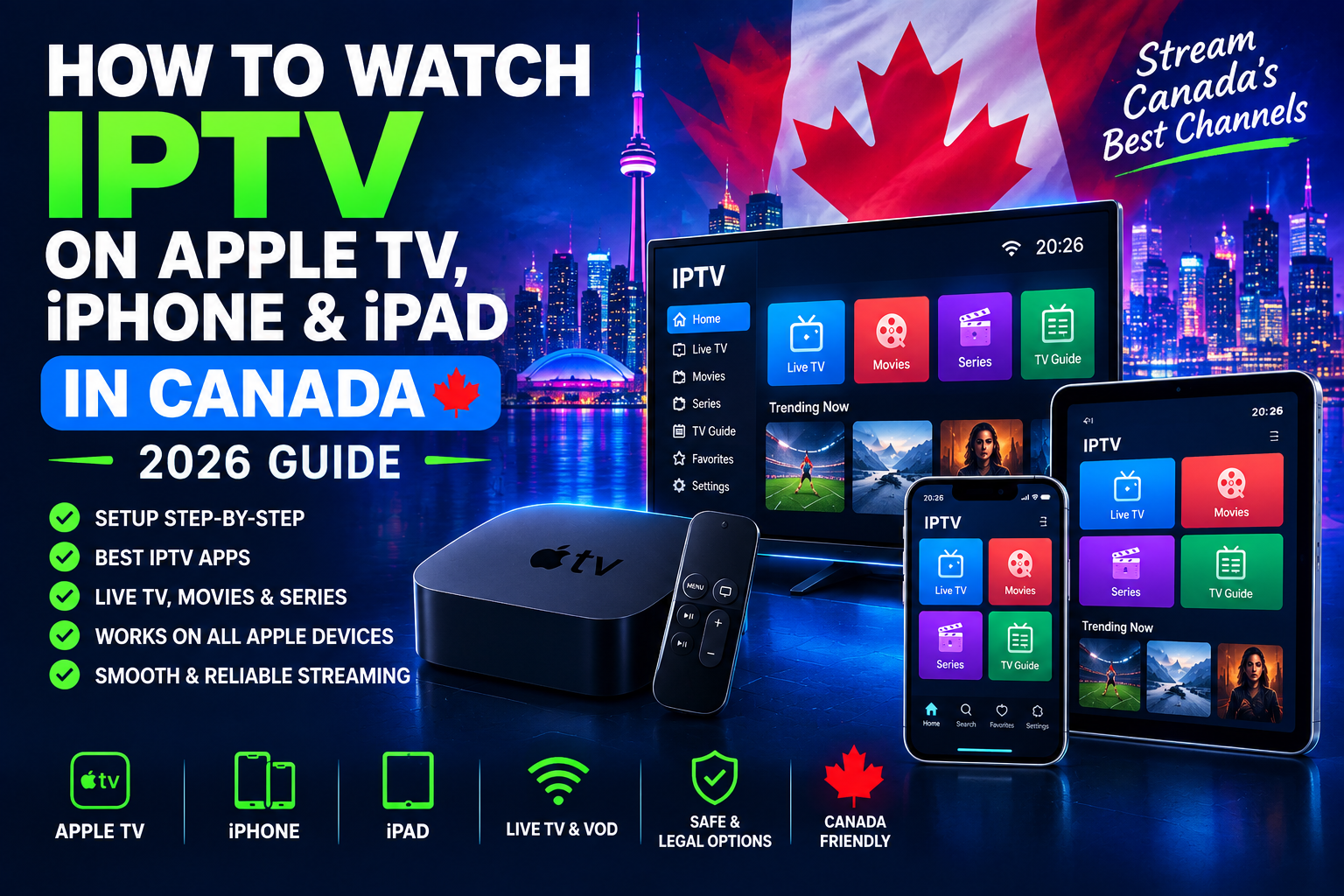
How to Watch IPTV on Apple TV, iPhone & iPad in Canada: 2026 Guide
If you want to watch IPTV on Apple TV, iPhone, or iPad in Canada, getting started is easier than you might think. With the right IPTV player and a compatible subscription, you can access live TV, movies, series, sports, and other content directly from your Apple devices.
One of the most common ways to set up IPTV today is through the Xtream Codes API. Instead of manually entering a long playlist URL, you normally receive three pieces of information from your IPTV provider: a server URL, username, and password.
This complete 2026 guide explains how to watch IPTV on Apple TV, iPhone, and iPad, which apps you can use, how to configure each one using Xtream Codes, whether you need a VPN, and how to troubleshoot common IPTV problems in Canada.
Can You Watch IPTV on Apple TV, iPhone and iPad?
Yes. IPTV can be used on Apple TV, iPhone, and iPad through compatible IPTV player applications.
The important thing to understand is that an IPTV player and an IPTV subscription are two separate things.
The IPTV player is the application you install on your Apple device. It does not normally provide television channels itself. Your IPTV provider supplies the account or playlist that you add to the player.
For an Xtream Codes setup, your provider will generally give you:
- Server URL
- Username
- Password
You can then enter these details into a compatible IPTV application.
Before starting, you will generally need:
- An Apple TV, iPhone, or iPad
- A stable internet connection
- An IPTV subscription
- A compatible IPTV player
- Your Xtream Codes login details
Once you have this information, setting up IPTV usually takes only a few minutes.
Best IPTV Apps for Apple TV, iPhone and iPad in 2026
There are several IPTV players available for Apple devices, but four options worth considering are IBO Player, Smarters Player Lite, iMPlayer, and GSE Smart IPTV.
The exact interface can vary between app versions, but the basic Xtream Codes setup follows the same principle: enter your provider’s server URL, username, and password.
1. IBO Player
IBO Player is an IPTV media player available for Apple devices and supports IPTV playlist formats, including Xtream Codes on current versions/listings.
One difference with IBO Player is that the application may first display device information such as a MAC address or device key. These details are used to identify the device when managing the playlist.
How to Set Up IPTV on IBO Player
Step 1: Install IBO Player
Open the App Store on your Apple device and search for IBO Player.
Install the application and open it.
Step 2: Find Your Device Information
When you first open IBO Player, note the MAC address and device key displayed by the application if requested.
These details identify your installation.
Step 3: Add Your IPTV Playlist
Use the playlist-management method associated with your version of IBO Player.
When the Xtream Codes option is available, enter:
- Playlist name
- Server/host URL
- Username
- Password
Make sure the server URL is entered exactly as supplied by your IPTV provider.
Step 4: Save the Playlist
Save the playlist and allow the service to process your account.
Step 5: Restart IBO Player
Close and reopen the application.
Your Live TV, Movies, Series, and other available categories should then appear if they are included with your subscription.
If your version of IBO Player uses a MAC/device-key activation process, make sure those details correspond to the device where you installed the application.
2. Smarters Player Lite
Smarters Player Lite is another option for Apple users. Current App Store listings describe support for IPTV sources and Xtream Codes, alongside playlist-based formats.
For most IPTV customers, the Xtream Codes method is the simplest way to connect the application to their subscription.
How to Set Up IPTV on Smarters Player Lite
Step 1: Download Smarters Player Lite
Open the App Store on your iPhone, iPad, or compatible Apple TV and search for Smarters Player Lite.
Install and open the application.
Step 2: Choose the Xtream Codes Login
Look for an option such as:
Login with Xtream Codes API
The wording can vary depending on the version of the application.
Step 3: Enter Your IPTV Details
You will normally see fields for:
- Any Name
- Username
- Password
- Host / Server URL
For the name, you can enter the name of your IPTV provider.
Enter the username and password exactly as provided.
For the host/server field, enter the server URL supplied by your provider.
Step 4: Add the Account
Select Add User, Login, or the equivalent option shown by your version of the application.
The app will connect to the IPTV server and retrieve your available content.
Step 5: Start Watching
Once the account has loaded, you can normally access categories such as:
- Live TV
- Movies
- Series
- EPG
- Favourites
The categories available depend on what your IPTV provider supplies.
3. iMPlayer
iMPlayer is another IPTV player designed for users who want a more advanced interface for Live TV and other IPTV content.
Its current Apple listing supports features such as Live TV, VOD, Catch-up, and EPG, while iMPlayer is designed to work with IPTV playlist sources.
How to Set Up IPTV on iMPlayer
Step 1: Install iMPlayer
Download iMPlayer from the App Store on your compatible Apple device.
Open the application after installation.
Step 2: Add a New IPTV Source
From the application’s main screen, look for the option to add a playlist, provider, or IPTV source.
Select the Xtream Codes option if it is available in your version.
Step 3: Enter Your Xtream Codes Information
Enter:
- Server URL
- Username
- Password
If the application asks for a playlist name, enter any name you want to use to identify your subscription.
Step 4: Save and Load the Account
Save the source and allow iMPlayer to retrieve your IPTV categories.
The initial loading process can take some time, especially if your subscription contains a large number of channels, movies, and series.
Step 5: Browse Your Content
Once loading is complete, you can access the available Live TV, VOD, Series, EPG, and Catch-up sections.
Features such as EPG and Catch-up also depend on whether the IPTV provider supplies the required information.
4. GSE Smart IPTV
GSE Smart IPTV is a popular IPTV player for iPhone and iPad and supports both M3U and Xtream Codes API. Its current App Store listing also highlights EPG, VOD, series, Catch-up TV, multiple playlists, and other IPTV features.
There is also a dedicated Apple TV version of GSE Smart IPTV with Xtream Codes API support.
How to Set Up IPTV on GSE Smart IPTV
Step 1: Install GSE Smart IPTV
Open the App Store and search for GSE Smart IPTV.
Install the version compatible with your Apple device.
Step 2: Open the Playlist Manager
Open GSE Smart IPTV and find the playlist management section.
Step 3: Select Xtream Codes API
Choose the Xtream Codes API option.
Step 4: Enter Your Login Details
Enter the information provided by your IPTV provider:
- Playlist name
- Server URL
- Username
- Password
GSE specifically supports Xtream Codes API, so you do not need to manually build an M3U URL when your provider gives you Xtream Codes credentials.
Step 5: Save the Playlist
Save your account and allow GSE Smart IPTV to load the available content.
Once completed, you can access Live TV, EPG, VOD, Series, Catch-up, and other sections supported by your IPTV source.
Which IPTV App Should You Use?
All four applications can provide access to IPTV content, but the experience and setup can differ.
| IPTV App | Apple TV | iPhone | iPad | Xtream Codes |
|---|---|---|---|---|
| IBO Player | Supported on compatible versions | Yes | Yes | Yes |
| Smarters Player Lite | Supported on compatible versions | Yes | Yes | Yes |
| iMPlayer | Supported on compatible versions | Yes | Yes | Yes |
| GSE Smart IPTV | Yes | Yes | Yes | Yes |
For users who already have Xtream Codes credentials, the setup is generally straightforward: select the Xtream Codes/API login option and enter the server URL, username, and password.
Always check the current App Store listing for your region because application availability and supported Apple devices can change over time.
Do You Need a VPN for IPTV in Canada?
A VPN is not automatically required to watch IPTV on Apple TV, iPhone, or iPad.
A VPN can encrypt your internet connection and may be useful for privacy or certain network-related situations, but it is not a requirement simply because you are using IPTV.
Whether a VPN helps depends on your internet connection, IPTV provider, and network environment.
When Could a VPN Be Useful?
A VPN may be useful if:
- You regularly use public Wi-Fi.
- You want additional privacy from your local network.
- Your network has routing or connectivity problems.
- Your IPTV provider specifically recommends one for your connection.
If your IPTV service works correctly without a VPN, there is generally no need to add one solely for streaming.
Final Thoughts
Watching IPTV on Apple TV, iPhone, and iPad in Canada is straightforward when you use a compatible player and the correct Xtream Codes credentials.
IBO Player, Smarters Player Lite, iMPlayer, and GSE Smart IPTV provide different ways to access your IPTV subscription, while a VPN is optional and depends on your network and privacy needs.
Frequently asked questions
Can I watch IPTV on Apple TV in Canada?
Yes. You can use a compatible IPTV player and your provider’s Xtream Codes credentials.
Can I use IPTV on iPhone and iPad?
Yes. Install a compatible IPTV app and enter your IPTV login details.
Do I need a VPN for IPTV in Canada?
No. A VPN is optional and depends on your privacy and network needs.
Why is my IPTV buffering?
Buffering can be caused by your internet connection, VPN, app, device, or server. Try restarting the app and testing without a VPN.