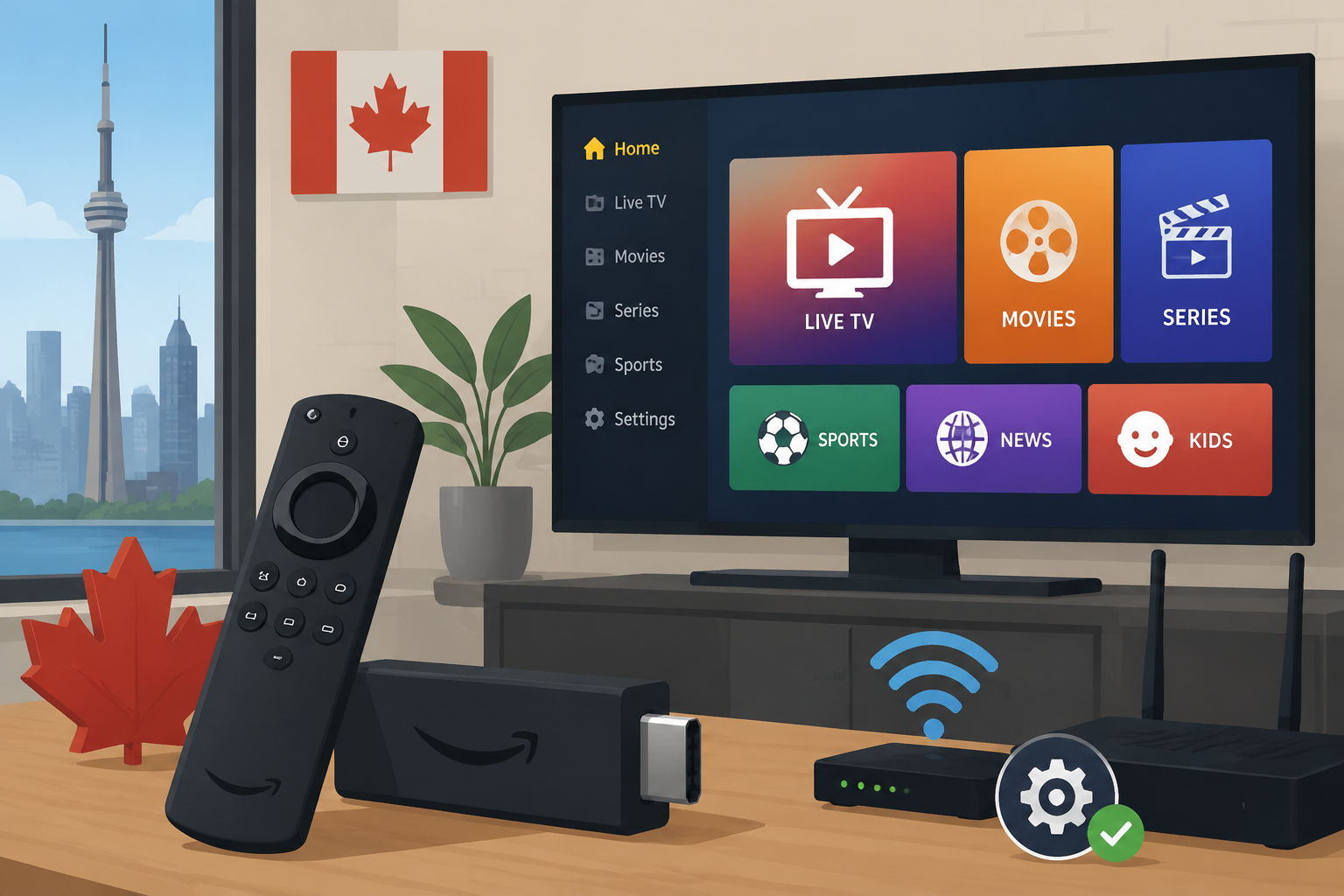
IPTV Firestick Canada Installation Guide (Step-by-Step 2026)
The Amazon Fire TV Stick has become one of the most popular streaming devices in Canada thanks to its affordable price, simple interface, and compatibility with many entertainment applications. For users who want a smoother streaming experience, combining a Firestick with an IPTV service can provide access to live TV channels, movies, sports, and on-demand content through a single device.
If you are searching for an IPTV Firestick Canada installation guide, this step-by-step tutorial explains how to prepare your Fire TV Stick, install an IPTV player, configure your subscription, and optimize your streaming experience.
Whether you own a Fire TV Stick Lite, Fire TV Stick HD, Fire TV Stick 4K, or Fire TV Stick 4K Max, the setup process is generally similar. Amazon recommends completing the initial Fire TV setup by connecting the device to your TV, Wi-Fi network, and Amazon account before installing additional applications.
What Is IPTV and Why Use It on Firestick in Canada?
IPTV (Internet Protocol Television) is a technology that delivers television content through an internet connection instead of traditional cable or satellite signals.
In Canada, many users choose IPTV-compatible solutions because Firestick devices are:
- Affordable compared with traditional TV boxes
- Easy to install
- Portable between televisions
- Compatible with HD and 4K streaming
- Supported by many IPTV player applications
A Fire TV Stick essentially transforms any compatible television into a smart streaming system where users can manage their entertainment apps from one interface.
What You Need Before Installing IPTV on Firestick
Before starting the IPTV Firestick Canada installation process, make sure you have the following:
1. Amazon Fire TV Stick
Any recent Firestick model should work:
- Fire TV Stick HD
- Fire TV Stick Lite
- Fire TV Stick 4K
- Fire TV Stick 4K Max
For the best experience, a 4K model is recommended if your television supports Ultra HD resolution.
2. Stable Internet Connection
Streaming quality depends heavily on your internet connection.
Recommended speeds:
- HD streaming: 10 Mbps or higher
- Full HD streaming: 15–20 Mbps
- 4K streaming: 25 Mbps or higher
A wired Ethernet adapter can also improve stability compared with Wi-Fi.
3. IPTV-Compatible Application
The Firestick does not usually include IPTV applications by default. You need to install a compatible IPTV player such as:
- IPTV Smarters
- TiviMate
- XCIPTV
- Other compatible IPTV players
4. Active IPTV Subscription
You will also need login details from your IPTV service provider.
A reliable iptv subscription usually provides activation information such as:
- Username
- Password
- Server URL or playlist information
Step 1: Set Up Your Amazon Firestick
Before installing any IPTV application, complete your Firestick setup.
Connect Firestick to Your TV
- Plug the Fire TV Stick into an available HDMI port.
- Connect the USB power cable.
- Turn on your television.
- Select the correct HDMI input.
Amazon’s official setup instructions explain that Fire TV devices require an HDMI connection, power source, Wi-Fi connection, and Amazon account registration before use.
Connect to Wi-Fi
Follow the instructions displayed on your screen:
- Choose your home Wi-Fi network.
- Enter your password.
- Wait for the Firestick to connect.
A strong Wi-Fi signal is important to avoid buffering and playback interruptions.
Step 2: Enable App Installation on Firestick
Some IPTV applications are not available directly through the Amazon App Store. Firestick users can install compatible applications through approved installation methods.
To prepare your device:
- Open Settings.
- Select My Fire TV.
- Choose Developer Options.
- Enable the option allowing installation from external sources when required.
The menu names may vary depending on your Fire OS version.
Step 3: Install an IPTV Player on Firestick
One popular method is installing a downloader application that allows you to access installation files.
Install Downloader
Follow these steps:
- Open the Firestick home screen.
- Select the search icon.
- Type “Downloader”.
- Install the application.
- Open Downloader.
After installation, you can use it to access IPTV player applications compatible with Fire TV devices.
Step 4: Configure Your IPTV Application
Once your IPTV player is installed:
- Open the application.
- Select the login option.
- Enter your IPTV account details.
- Wait for the playlist to load.
Most IPTV applications require information provided by your IPTV service:
- Username
- Password
- Server address
After successful configuration, your channels and categories should appear inside the application.
Step 5: Optimize IPTV Streaming Quality on Firestick
A correct setup is important, but optimization can significantly improve performance.
Clear Application Cache
If your IPTV app becomes slow:
- Go to Settings.
- Open Applications.
- Select Manage Installed Applications.
- Choose your IPTV player.
- Select Clear Cache.
Restart Your Firestick Regularly
Restarting your device helps:
- Free memory
- Fix temporary errors
- Improve application performance
Use a Strong Internet Connection
Avoid placing your Firestick too far from your router. If possible:
- Use 5 GHz Wi-Fi
- Reduce network congestion
- Restart your router occasionally
Common IPTV Firestick Problems and Solutions
IPTV Buffering Issues
Possible causes:
- Weak Wi-Fi signal
- Slow internet speed
- Overloaded network
- Application cache problems
Solutions:
- Restart your router
- Clear IPTV app cache
- Use a faster internet connection
IPTV App Not Loading
Try:
- Restarting Firestick
- Updating the application
- Checking your login information
- Reinstalling the IPTV player
Channels Not Appearing
Check:
- Your subscription status
- Your internet connection
- Your IPTV credentials
Sometimes refreshing the playlist inside the application solves the problem.
Choosing the Right IPTV Provider in Canada
Choosing the right service is one of the most important steps after installing IPTV on Firestick.
A quality iptv provider should offer:
- Reliable server performance
- Good streaming quality
- Responsive customer support
- Compatibility with Firestick devices
- Clear subscription options
Avoid services that provide unrealistic promises or lack customer support.
IPTV Firestick Canada: Frequently Asked Questions
Can I use IPTV on Amazon Firestick in Canada?
Yes, Firestick devices support many IPTV player applications. You need a compatible application and valid subscription information.
Does IPTV work on Firestick 4K?
Yes. Fire TV Stick 4K models are designed for high-resolution streaming and can run compatible IPTV applications.
Do I need a VPN for IPTV on Firestick?
VPN requirements depend on your location, internet provider, and the service you use. Always follow applicable laws and service terms.
Why is my IPTV buffering on Firestick?
Buffering is usually related to internet speed, Wi-Fi quality, device performance, or server issues.
Final Thoughts
Installing IPTV on Firestick in Canada is a straightforward process when you follow the correct steps. The Fire TV Stick provides an affordable and convenient streaming platform, while IPTV applications allow users to organize their entertainment experience in one place.
By choosing a reliable service, maintaining a strong internet connection, and optimizing your Firestick settings, you can enjoy a smoother streaming experience.
For additional Fire TV setup information, Amazon provides official guides and troubleshooting resources for Fire TV devices.